
To make shipping and order picking more convenient, four features including "Export Order Report / Stock Picking List / Order Invoice / Packing Slip" are now available on the Orders page. The system will help you collect the key data about your orders more efficiently.
You can choose which fields to include in the Order Report and in what order. The Packing Slip and Order Invoice can be used for order picking or included in the package for customers. Export limits vary by report type, so please check the details below before exporting.
In this article, you’ll find:
- FAQs
- How to export
- How to filter orders based on the data
- Overview of Order Report fields
- Packing Slip & Order Invoice
- Notes
1. FAQs
1. Where is the order export button?
To export orders, go to SHOPLINE Admin > [Order Management] > [Order] and click More Actions at the top right. You can then choose to export the Stock Picking List, Order Invoice, Order Report, or Packing Slip. For detailed steps, please refer to Step 1. Open the export menu.
2. Why is my exported Order Report split into multiple files?
If the export date range of the Order Report exceeds 31 days, the report will be split into monthly files. If the export date range is 31 days or less, or if you export using the "Select all orders across pages" feature, the report will not be split. For more details, please refer to Limitations on order report details.
3. Is there a retention period or date limit for exporting orders?
Yes, there is a date limit. Orders earlier than 2 years will be automatically archived, and you cannot select that date range when exporting the Stock Picking List or Packing Slip from the Orders page. Archived orders can be searched and exported on the "Archived Orders" page. We recommend regularly exporting and saving order reports before orders are archived to avoid issues with large exports. For more details, please refer to Limitations on order report details.
4. How do I export archived historical orders?
Orders earlier than 2 years are moved to the "Archived Orders" page. To export them, go to the "Archived Orders" page and click Export Archived Orders. For detailed steps, please refer to Order History Auto-Archiving.
2. How to export orders
You can export the Stock Picking List / Order Invoice / Order Report / Packing Slip from the Orders page in the SHOPLINE Admin. To export the Stock Picking List, Order Invoice, or Packing Slip, you only need to complete Step 1 and Step 2. To export the Order Report, you also need to complete the field settings in Step 3.
Notes:
- Orders earlier than 2 years will be automatically archived and are not selectable when exporting the Stock Picking List.
- We recommend regularly exporting and saving order reports before orders are archived to avoid issues with large exports. For more details, please refer to Order History Auto-Archiving.
Step 1. Open the export menu
In the SHOPLINE Admin, go to [Order Management] > [Order] > [More Actions] > [Export Stock Picking List / Order Invoice / Order Report / Packing Slip].
Step 2. Select the export range and date range
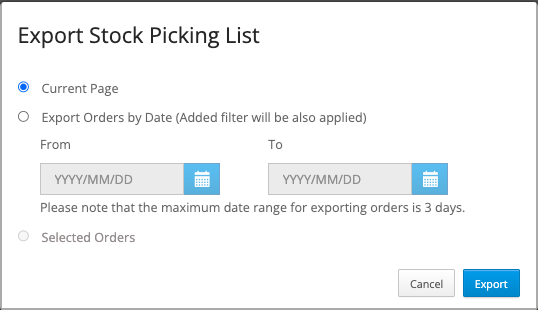
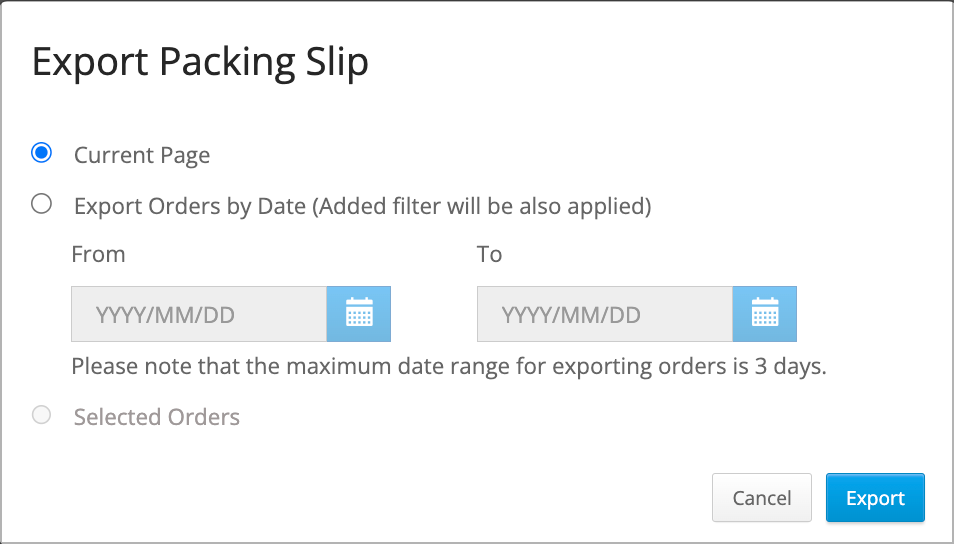
Select the export range and date range, and then click Export.
Export Stock Picking List
Export Order Invoice
If you use the "Select all orders across pages" feature, "Export Order Invoice" will not be available. For more information, please refer to Order Management Overview | Order Management.
Export Order Report
Those who choose to export Order Report, please proceed to Step 3.
Export Packing Slip
Step 3. Set up the Order Report fields
Check the fields you want to export from the Order Report. You can select or deselect fields you want to display, and in what sequence you want them to appear. The system will customize the exported report based on the order of the fields you arrange. Click Export once you're done.
Setup Guide (Customize Export Template)
| Single selection | Check the fields you want on the left, and they will then appear in the right panel. To deselect the fields, you can either uncheck the box in the left panel or delete the field in the right panel. |
| Batch selection | You can choose to select all fields from a category or select all available fields. Categories include Order, Shipping, Invoice, Product, and Customer. |
| Field sequence | Fields are ordered according to selection time (from old to new) and arranged in the same order as in the left panel. |
| Required field | The Order number is mandatory and cannot be removed from the Order Report. |
| Special fields | Some fields are specifically designed for certain countries or regions. The countries or regions in which a field is available can be seen in the title following the field name. We recommend you not select fields that are not available in your country/region to avoid blank columns appearing in your report, e.g., invoice-related fields outside of Taiwan. |
| Default fields | The system has a default Order Report template. Once you’ve customized and exported the report settings for the first time, these will become the default settings for your next export; however, you are able to edit the template if necessary. |
| Routes applicable to default fields |
1. Order Report exported via [Orders] > [More Actions] > [Export Order Report]. 2. Order Report exported via [Report & Analytics] > [Report Export] > [Sales] > [Order Report (New)]. |
| Recall rules of default fields |
Export settings (fields) preferences will be recorded for individual users, not for a store. Example: 1. Administrator A had previously configured the field settings and then exported a report. When Administrator B uses it for the first time, the system will still apply the default set of commonly used fields (not the ones that Administrator A had configured). 2. Administrator A had previously configured the field settings and then exported a report. Later, when Administrator A uses it again, the system will apply the set of fields based on their previous configuration. |
3. How to filter orders based on the data
When exporting order data, you can select the export range in three ways: "Current Page", "Date", or "Selected Orders".
i. Current Page
You can use the "Add Filters" feature to filter orders based on their status, delivery method, order sources, and more. Then, click on [More Actions] > [Export Order Report] > [Current Page] to export the order data that matches your filter criteria.
ii. Date
A. Order Date
You can filter/export Order Reports by setting the date range, with a maximum interval of 366 days.
B. Shipped/Arrived Date
You can export Order Reports by setting your desired shipment/delivery date range, with a maximum interval of 31 days.
- Shipment Date: within this date range, orders with a delivery status of "Shipped".
- Arrival Date: within this date range, orders with a delivery status of "Arrived".
Note: If your store is located in Hong Kong and uses HK$, and also uses SF Express for delivery, the date when the delivery status changes to "Arrived at pick-up point" is considered the Arrival Date. Please refer to SF Express Auto Delivery Feature for more information.
iii. Selected Orders
The orders selected through the "Designated (selected) orders, Select all orders on a single page, and Select all orders across pages" features will be the data exported in the Order Report.
*Note: To learn more about "Select all orders across pages", please refer to Order Management Overview | Order Management.
4. Overview of Order Report fields
The Order Report fields are divided into the following categories: Order, Subscription, Delivery, Invoice, Product, Customer, and Marketing. The fields included in each category are described below.
i. Order
General order information falls into this category, including shopping cart number, order number, combined order number, referral source platform, salesperson, order date, payment method, order subtotal, shipping fee, discount, tax, recommended activities, and so on.
To learn more related information, please refer to:
- Order Management Overview | Order Management
- Order Edit
- Order Source Introduction|Order Management
- Split Orders | Order Management
- Order Management Overview
ii. Subscription
The subscription information in the order belongs to this category, including fields such as subscription term, next order creation date, and subscription code.
To learn more related information, please refer to:
- Product Subscription
- Product Subscription Promotions
- End Subscription Notification
- Subscription Order Reminder
- Subscription Order Gifts Settings
iii. Delivery
All the shipping information in the order falls into this category, including the delivery method, delivery status, recipient, address, country/region, shop name, delivery time and date, arrival time, pick-up time, return time, and so on.
To learn more related information, please refer to:
- Order Comments, Notes & Delivery Remarks
- Logistics introduction
- Specified Delivery Time
- Change Delivery Method After Placing Order
iv. Invoice
This field is only applicable to stores in Taiwan or stores using NT$. It includes multiple fields such as the invoice ID, invoice type, invoice format, invoice carrier, carrier number, and so on.
To learn more related information, please refer to Edit Invoice Details.
v. Product
The product information in the order falls into this category, which includes product SKU, product cost, quantity, variation, pre-order product, product type, add-on product type, location number, product discount offer, and so on.
To learn more related information, please refer to:
vi. Customer
The customer information in the order belongs to this category, including customer ID, customer name, email, phone number, gender, birthday, membership, membership tiers, membership registration date, membership registration sources, referrer's name, referrer's email, referrer's phone number, and more.
To learn more related information, please refer to:
- Customer's Social Name in Order Details
- Order Comments, Notes & Delivery Remarks
- Customer Management Overview
vii. Marketing
The marketing campaign information in the order falls into this category, and the fields include UTM source, UTM medium, UTM source / medium, UTM campaign name, UTM campaign term, UTM campaign content, and UTM clicked time.
To learn more related information, please refer to Urchin Tracking Module (UTM) parameters.
5. Packing Slip & Order Invoice
Both Order Invoice and Packing Slip record order details that can be used by merchants when preparing orders and also for customers' reference. The following explains the difference between the two.
i. Packing Slip
A Packing Slip has a simple layout and only shows the minimum amount of information needed to pick up and pack products. It does not contain any related customer details. This simplified format can reduce printing costs and is also useful for safeguarding customers' data privacy.
*Note: If a packing slip includes product sets, the quantity of the child products will be displayed directly as the quantity to ship.
ii. Order Invoice
An Order Invoice provides more details compared to a Packing Slip. In addition to the information included in a Packing Slip, it also shows the order status, payment status, customer information, product image, order messages, any associated discounts, and the merchant's logo.
How to partially hide customer information on an Order Invoice
To help protect your customers' privacy, it is possible to hide sensitive information on an Order Invoice. Go to [Settings] > [Order Settings] and switch on the Hide partial information of order invoice toggle. Upon switching it on, you can decide whether to hide the content edited by customers themselves in the custom fields of "Order Settings" and "Customer Settings."
When the Hide partial information of order invoice toggle is switched on, information on the Order Invoice will be partially hidden using asterisks, as illustrated below:
-
Customer information
- Order Customer Chan **
- Email: a*****@gmail.com
- Phone Number: 0911***111
- Gender: *
- Birthday: ******
-
Recipient information
- Address: *** ****green Terrace, Springfield
- Name: Chan **
- Phone Number: 0911***111
*Notes:
- If you have chosen to hide the custom fields of "Order Settings" and "Customer Settings," the information filled out in the custom fields on the checkout page will be hidden.
- To learn more about cybersecurity information, please refer to SHOPLINE Admin Data Security Features.
6. Notes
i. Limitations on order report details
- Order Report: 366 days at the maximum
- Stock Picking List: 3 days at the maximum
- Order Invoice: 1 page at the maximum
- Packing Slip: 3 days at the maximum
Notes:
- Orders earlier than 2 years will be automatically archived and are not selectable for exporting.
- We recommend regularly exporting and saving order reports before orders are archived to avoid issues with large exports. Large exports of archived orders may take longer or time out. To avoid delays, please shorten the date range and export in batches.
If the order report export date range exceeds 31 days, the report will be split into monthly files. If the export date range is 31 days or less, the report will not be split.
If a single month export fails or remains in "Pending" status, while other months export successfully, you only need to re-export the failed month.
If you use the "Select All Customers Across Pages" feature to export the order report, the file will not be split. For more details, please refer to: Select All Customers Across Pages|Customer List.
ii. Order export file time range basis
Merchants can freely filter by date on the "Orders" page, but when you're ready to export the file, the date range will be those specified in the pop-up window as shown below.
You cannot export the next Order Report until the current export work is completed.
You can proceed to [Report & Analytics] > [Bulk Action Process] to view the status of your Order Report Export.
Read more
Last updated: 11 November 2026
Comments